Cleaning a Keyboard and a PC Without Damaging Anything
Dust is the main reason a computer that was quiet becomes loud and then becomes slow. Cleaning it is straightforward, takes twenty minutes, and there are exactly three ways to do damage while doing it.
Why dust matters more than it looks
Dust does not break anything directly. It insulates. A heatsink coated in a felt of dust cannot transfer heat into the air, so the component runs hotter, the fan runs faster to compensate, and eventually the processor throttles itself to stay within temperature.
The symptoms people report — a laptop that gets hot, a desktop that has become audible, performance that has quietly declined — are usually a thermal problem long before they are a hardware fault.
In an apartment with radiators and street windows, six months is enough to build a meaningful layer.
Cordless air dusters versus compressed cans
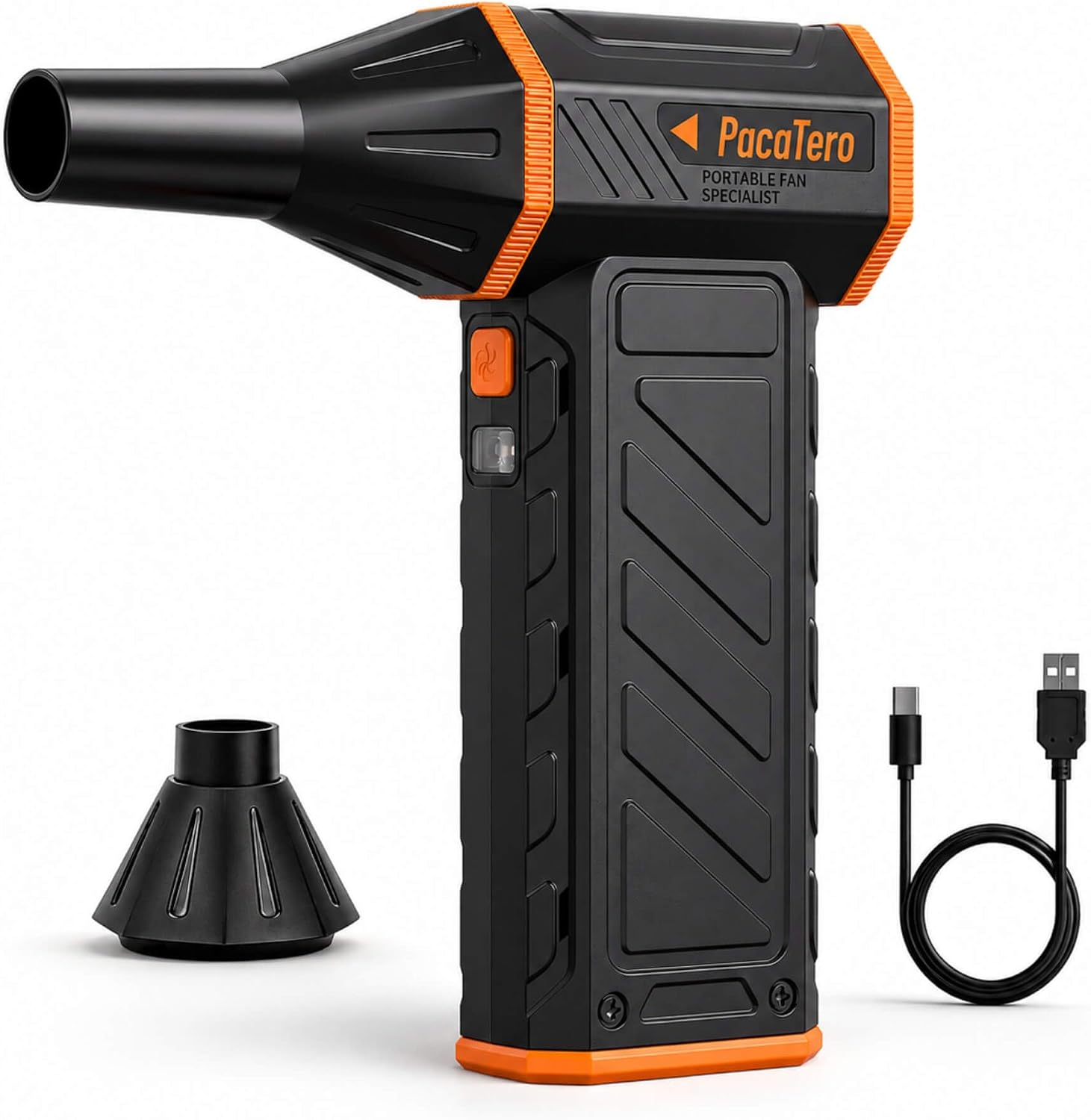
An electric cordless duster produces a continuous high-velocity airstream, does not run cold, does not run out, and does not tip over and spray liquid propellant onto a board. Those are all real advantages over aerosol cans.
The trade-off is that a high-RPM duster produces genuinely strong airflow, which is where the one real hazard lies — see the fan section below.
Battery capacity determines how long you get. A 10,000mAh unit will comfortably do a full desktop and a couple of keyboards on a charge.
Never let a fan spin freely
This is the mistake that damages hardware. Blowing air through a fan spins it far beyond its design speed, and a fan driven backwards acts as a small generator, feeding voltage back into the board it is connected to.
Hold every fan still with a finger or a cocktail stick before you blow air through it. This applies to case fans, CPU coolers, GPU fans and laptop blowers equally.
It takes two seconds and prevents both bearing damage and the rarer but genuinely destructive electrical case.
Static, and how much to worry
Modern components are far more robust than the folklore suggests, but static discharge is still a real failure mechanism, particularly in dry winter air on a carpeted floor. Touch the metal chassis of the unplugged computer before you touch anything inside it.
Work on a hard floor rather than carpet if you can, and avoid wearing a fleece while doing it. A grounding strap is cheap and removes the question entirely.
Unplug the machine from the wall first. On a desktop, hold the power button for five seconds after unplugging to drain the power supply.
A safe order of operations
Unplug. Move the machine somewhere you do not mind dust landing — outdoors or a bathroom, not the desk you just cleaned. Open the case. Hold each fan, blow the heatsinks out from the inside towards the vents, then the fan blades, then the power supply grille from the outside.
Do not open the power supply itself. It contains capacitors that hold charge long after the machine is unplugged, and there is nothing in there you need to reach.
Wipe the case interior with a dry microfibre cloth rather than a damp one.
Keyboards: mechanical and membrane
Turn the keyboard upside down and shake it before you do anything else; most of the debris falls out on its own. Then use short bursts of air at an angle, working across the board so the dust travels out rather than deeper.
On a mechanical keyboard, keycaps pull off with a puller and the plate underneath can be cleaned properly. On a membrane keyboard, do not remove the caps: the retaining clips are fragile and rarely survive.
For sticky keys on a membrane board, a barely damp cotton bud around the cap edge is as far as you should go. Liquid inside a membrane sheet is terminal.
Laptops, where access is limited
Most laptop overheating is a blocked exhaust vent rather than a dusty interior. Blow air into the intake and out through the exhaust, holding the fan if you can see it through the grille.
If a laptop still runs hot after that, the thermal paste has likely dried out. That is a genuine repair job requiring disassembly and is worth doing on a machine you intend to keep for years.
Raising the rear of a laptop by half an inch improves intake airflow noticeably and costs nothing.
How often, and what to expect
Every six months in a normal home, every three in a dusty one or with pets. Set a reminder rather than waiting for the fan noise, because by the time it is audible the machine has been running hot for a while.
A well-cleaned machine is quieter within minutes and cooler within the same session. It is one of the few maintenance jobs with an immediate, obvious result.
Keep the duster charged and in the same drawer as the screwdriver set, and the job stays a twenty-minute chore rather than a project.
Where to go next
Cordless air dusters, precision screwdriver sets and repair tools are in Tools & Repair.
Shop Tools & Repair
Related articles
- How to Choose a Surge Protector by Joule Rating — Joules, clamping voltage and response time explained in plain language, with the rating to look for on a desk, a rack and a TV wall.
- Travel Adapters Versus Voltage Converters — An adapter changes the plug shape. A converter changes the voltage. Confusing the two is how appliances get destroyed abroad.
- A Beginner's Guide to Soldering Safely at Home — Temperature, tip care, ventilation and lead safety. What you need to know before the first joint, and the mistakes that waste solder.
- Choosing a Keypad or Fingerprint Deadbolt for a Rental — What a keyless deadbolt replaces, what it needs from your door, and how to leave the original hardware intact for move-out.
- Why Your Charger Is Slow, and How to Fix It — Wattage, shared supplies and cable quality decide charging speed far more than the socket does. A diagnostic order that works.